PRU's on the Beaglebone Black
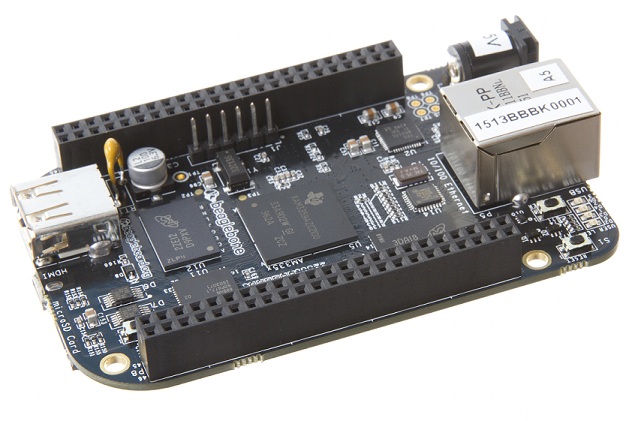
PRU’s on the Beaglebone - ( Using UIO with the TI Kernel )
The Sitart AM335X chip used on the Beaglebone series of microcontrollers, as well as having the main ARM core also contains 2 independent 32bit 200MHz controllers known as Programmable Realtime Units (PRU’s). They don’t use an interrupt system, making them completely deterministic & therefore great for doing time critical tasks such as waveform generation. Most instructions take a single clock cycle (5ns) to execute so things like sending an infra red remote signal or controlling RF433 based equipment is easily within it’s capabilites. This makes it a useful device for running a home automation server such as Home-Assistant or Openhab.
This guide is written for fellow newbies to the BBB as an aid to understanding how to talk to the onboard PRU’s. As a newbie some of my terminology and understanding may not be quite correct, however it’s hopefully enough to give you an idea what is going on. The whole subject is a bit of a minefield for the beginner; a lot of things have changed over the last few years and most of the guides you come across are only partially correct, you have to pick through the bones to find the nuggets!. If you’re using a modern stock debian image then blindly following them will lead to nothing but frustration. This guide will surely become irrelevant with time too but hopefully as of Oct 2017 it will be of some use.
My system
I’m using the stock debian 9.1 IOT image from Beagleboard.org on an old 2GB Beaglebone Black.
rproc & uio, Kernel images, dtb’s, uboot overlays, omg wtf?
In the beginning there was the Linux Userspace I/O interface (UIO) for communicating with the various onboard devices. There was then a transition over to a new way of communicating known as RPROC. In previous kernels these two were mutually exclusive options. You either decided to use UIO, in which case you needed a ‘bone’ version of the kernel, or you moved to the new ‘rproc’ system that TI was pursuing and so used a ‘TI’ kernel. However the latest TI kernels lets you decide which way you want to go, you can choose either method. (My kernel version is 4.4.88-ti-r125)
So why stick with UIO if RPROC is the future?
Because UIO is easier to deal with for simple tasks. There are quite a few examples out there on the net using uio but not much on rproc - yet.
My /boot/uEnv.txt file
#Docs: http://elinux.org/Beagleboard:U-boot_partitioning_layout_2.0

uname_r=4.4.88-ti-r125
#uuid=
#dtb=


###U-Boot Overlays###
###Documentation: http://elinux.org/Beagleboard:BeagleBoneBlack_Debian#U-Boot_Overlays
###Master Enable
enable_uboot_overlays=1
###
###Overide capes with eeprom
#uboot_overlay_addr0=/lib/firmware/<file0>.dtbo
#uboot_overlay_addr1=/lib/firmware/<file1>.dtbo
#uboot_overlay_addr2=/lib/firmware/<file2>.dtbo
#uboot_overlay_addr3=/lib/firmware/<file3>.dtbo
###
###Additional custom capes
#uboot_overlay_addr4=/lib/firmware/<file4>.dtbo
#uboot_overlay_addr5=/lib/firmware/<file5>.dtbo
#uboot_overlay_addr6=/lib/firmware/<file6>.dtbo
#uboot_overlay_addr7=/lib/firmware/<file7>.dtbo
###
###Custom Cape
#dtb_overlay=/lib/firmware/<file8>.dtbo
###
###Disable auto loading of virtual capes (emmc/video/wireless/adc)
#disable_uboot_overlay_emmc=1
#disable_uboot_overlay_video=1
#disable_uboot_overlay_audio=1
#disable_uboot_overlay_wireless=1
#disable_uboot_overlay_adc=1
###
###PRUSS OPTIONS
###pru_rproc (4.4.x-ti kernel)
#uboot_overlay_pru=/lib/firmware/AM335X-PRU-RPROC-4-4-TI-00A0.dtbo
###pru_uio (4.4.x-ti & mainline/bone kernel)
uboot_overlay_pru=/lib/firmware/AM335X-PRU-UIO-00A0.dtbo
###
###Cape Universal Enable
enable_uboot_cape_universal=1
###
###Debug: disable uboot autoload of Cape
#disable_uboot_overlay_addr0=1
#disable_uboot_overlay_addr1=1
#disable_uboot_overlay_addr2=1
#disable_uboot_overlay_addr3=1
###
###U-Boot fdt tweaks...
#uboot_fdt_buffer=0x60000
###U-Boot Overlays###

cmdline=coherent_pool=1M net.ifnames=0 quiet
This is the stock uEnv.txt file with just the 2 changes shown to switch from RPROC to UIO. As you can see, the ‘#dtb=’ line is commented out as you now use a device tree overlay as opposed to changing the device tree (.dtb) file. So ignore articles telling you to comment out proc or uio in the .dtb source, recompile, move to /lib/firmware & blacklist rproc, etc. It’s no longer needed. What systems you need enabling (hdmi,emc,audio,adc etc) will determing what pins are available to you for GPIO & PRU stuff.
Setting up the build environment
sudo apt-get install pru-software-support-package sudo apt-get install ti-pru-cgt-installer then add this to /etc/profile.d/ti-pru-cgt.sh
export PRU_C_DIR="/usr/share/ti/cgt-pru/include;/usr/share/ti/cgt-pru/lib"
export PINS="/sys/kernel/debug/pinctrl/44e10800.pinmux/pins"
export SLOTS="/sys/devices/platform/bone_capemgr/slots"
export OPC="/sys/devices/platform/ocp/"It’s probably easier now to ‘su -’ to root to do most of this stuff, you can sudo but you loose the handy environment variables. I’ve often been led to think that something wasn’t working only to find out it would of if I’d been root.
Note: if you need to echo via sudo use: sudo sh -c “echo > ….”
How do I know everything is configured ok?
First thing to do is:
lsmod | grep uio

uio_pruss               4629  0
uio_pdrv_genirq         4243  0
uio 11100 2 uio_pruss,uio_pdrv_genirqls /dev/uio*
/dev/uio0 /dev/uio1 /dev/uio2 /dev/uio3 /dev/uio4 /dev/uio5 /dev/uio6 /dev/uio7/dev/uio0 is the shared memory space between the arm processor & the pru.
Have a look at this article: Skip the first section (it’s outdated & incorrect) but try compiling & running the hellopru app:
(Remember you will need to run it via sudo or as root)
HelloPRU example
PRUSS says 0x12345678 + 0x83719284 = 0x95A5E8FCGetting the PRU to talk to the outside world - Pins!
cat $SLOTS

0: PF----  -1
1: PF----  -1
2: PF----  -1
3: PF---- -1echo cape-universal > $SLOTSor, if you want it loaded at boot, add it to ‘/etc/default/capemgr’:
# Default settings for capemgr. This file is sourced by /bin/sh from
# /etc/init.d/capemgr.sh

# Options to pass to capemgr
# CAPE=BB-UART1,BB-UART2
CAPE=cape-universal
Next:
cat $SLOTS

 0: PF----  -1
 1: PF----  -1
 2: PF----  -1
 3: PF----  -1
4: P-O-L- 0 Override Board Name,00A0,Override Manuf,cape-universalThe next bit will make more sense if you download & print out these excellent spreadsheets by Derek Molloy. They show the various modes & different ways of referring to each pin.
Ok, We are now going to configure pin P8_11 as an output from the PRU.
cat $PINS | grep 0834

pin 13 (44e10834.0) 00000027 pinctrl-singleconfig-pin P8.11 pruout
cat $PINS | grep 0834
pin 13 (44e10834.0) 00000026 pinctrl-single
config-pin -q p8.11
P8_11 Mode: pruoutOk now you should use the following article to compile the blinky program to blink an LED attached to P8_11. Again be very careful to only follow the instructions for compiling the program. DO NOT ATTEMPT TO USE THE DEVICE OVERLAY FILE (it doesn’t work as is & needs modifying to setup the pinmux files) because you’ve already configured pin P8.11.